Using FunctionTip
Using AutoComplete
5
Using FunctionTip
To display the function signature for a function, testcase, or method
1. Within your script (.t or .g.t) or include file, type the function, testcase, or method name,
followed by an open parenthesis "("; for example SetUpMachine(
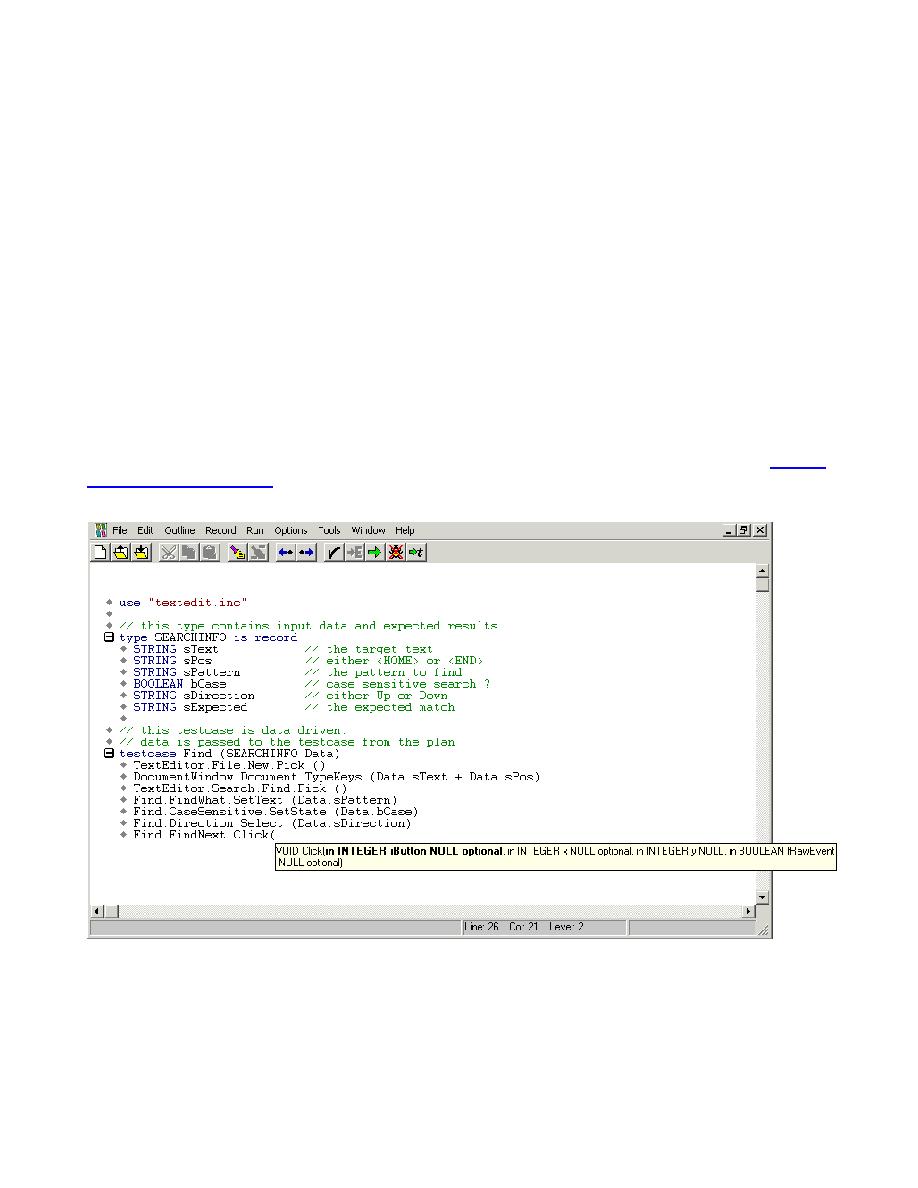
The function signature displays in a tooltip with the first argument, if any, in bold text. The
function signature includes the return argument type, pass-mode, data type, name of the
argument, and null and optional attributes, as they are defined.
2. Type the argument. The FunctionTip containing the function signature remains on top and
highlights the argument you are expected to enter in bold text. As you enter each argument
and then type a comma, the next argument that you are expected to type is highlighted. The
expected argument is always indicated with bold text; if you backspace or delete an argument
within your function, the expected argument is updated accordingly in the FunctionTip.
The FunctionTip disappears when you type the close parenthesis ")" to complete the function
call.
If you want to dismiss the FunctionTip, press Escape. FunctionTip is enabled by default. See
Turning
AutoComplete options off
if you want to disable FunctionTip.
For example, if you typed Find.FindNext.Click( the following FunctionTip for the Click method displays:
