View SoapUI Log in SoapUI
How to view SoapUI log in SoapUI?
✍: FYIcenter.com
 When you run a test, SoapUI records some high level execution
information and debug messages in the SoapUI log.
When you run a test, SoapUI records some high level execution
information and debug messages in the SoapUI log.
You can follow this tutorial to see view SoapUI log after running a SoapUI test.
1. Start SoapUI on your computer.
2. Click "File > Import" menu to open your first SoapUI test project stored in "\fyicenter\First-project.xml".
3. Double-click on "HTTP Request" test step under "Project 1 > TestSuite 1 > TestCast 1> Test Steps". You see the request window
4. Click the "Run" icon on the request window. You see the test step executed.
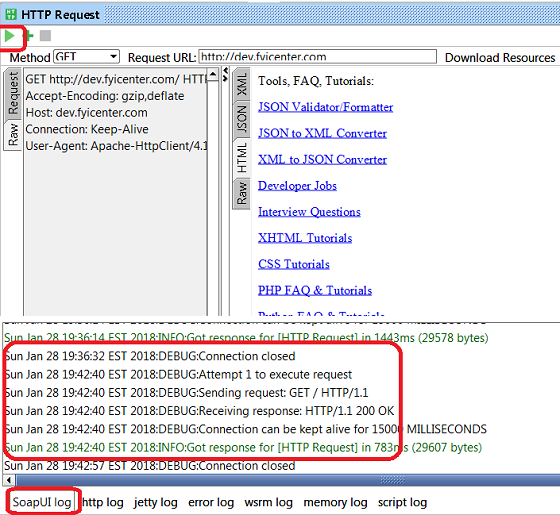
5. Click the "SoapUI log" tab at the button of the SoapUI window. You see some execution information and debug messages recorded by SoapUI.
... 2018:DEBUG:Attempt 1 to execute request
... 2018:DEBUG:Sending request: GET / HTTP/1.1
... 2018:DEBUG:Receiving response: HTTP/1.1 200 OK
... 2018:DEBUG:Connection can be kept alive for 15000 MILLISECONDS
... 2018:INFO:Got response for [HTTP Request] in 783ms (29607 bytes)
... 2018:DEBUG:Connection closed
Use right-mouse click on log messages to copy or save debug messages.
The picture below shows you how to view SoapUI log in SoapUI:
⇒ Testing SOAP Web Service with SoapUI
2018-04-12, ∼3245🔥, 0💬
Related Topics:
