Create Azure SQL Database
How to create an Azure SQL Database?
✍: FYIcenter.com
 If you have subscription account with Microsoft,
you can follow this tutorial to create an Azure SQL Database with Azure Web portal.
If you have subscription account with Microsoft,
you can follow this tutorial to create an Azure SQL Database with Azure Web portal.
1. Login to your Azure Web portal.
2. Select Create a resource in the upper left-hand corner of the Azure portal.
3. Select Databases and then select SQL Database to open the Create SQL Database page.
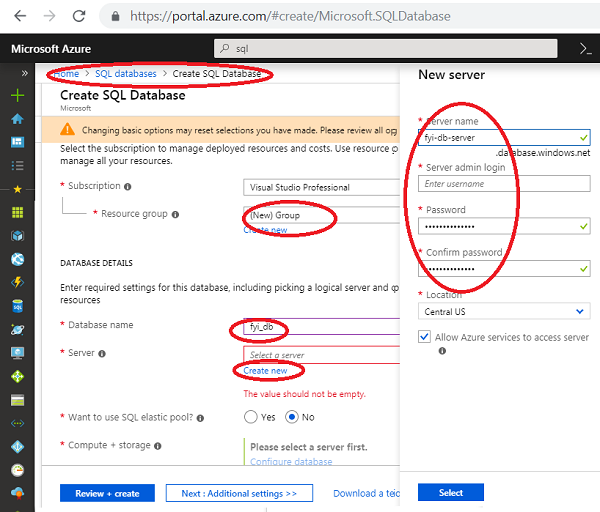
4. On the Basics tab, in the Project Details section, type or select the following values:
Subscription: Drop down and select the correct subscription,
   if you have multiple subscriptions.

Resource group: Select Create new, type myResourceGroup, and select OK.
5. In the Database Details section, type or select the following values:
Database name: Enter fyi_db.

Server: Select Create new and enter the following values and then select Select.
    Server name: Type fyi-db-server.
    Server admin login: Type fyi_admin.
    Password: Type a complex password that meets password requirements.
    Want to use SQL elastic pool: Select the No option.
    Compute + storage: Take the default.
6. Leave the rest of the values as default and select "Review + Create" at the bottom of the form.
7. Review the final settings and select "Create".
8. Wait for Azure to create the database. You will see the "Your deployment is complete", when it's done.
Your Azure SQL Database is ready!
⇒ Review Azure SQL Database Configuration
2019-07-21, ∼2661🔥, 0💬
Related Topics:


