View Request and Response Raw Messages in SoapUI
How to view request and response raw messages in SoapUI?
✍: FYIcenter.com
 Request raw message is the actual data SoapUI is sending
to the remote server, when you run a request.
The Request raw message includes the GET, POST or other
HTTP method line, request headers, and the request body.
Request raw message is the actual data SoapUI is sending
to the remote server, when you run a request.
The Request raw message includes the GET, POST or other
HTTP method line, request headers, and the request body.
Response raw message is the actual data SoapUI receives from the remote server, including the status line, response headers and the response body.
You can follow this tutorial to see how to view request raw message in SoapUI.
1. Start SoapUI on your computer.
2. Click "File > Import" menu to open your first SoapUI test project stored in "\fyicenter\First-project.xml". You see the test project displayed in the project explorer panel on the left.
3. Double-click on "HTTP Request" test step under "Project 1 > TestSuite 1 > TestCast 1> Test Steps". You see the "HTTP Request" window.
4. Click the "Run" icon on the request window. You see the test step executed.
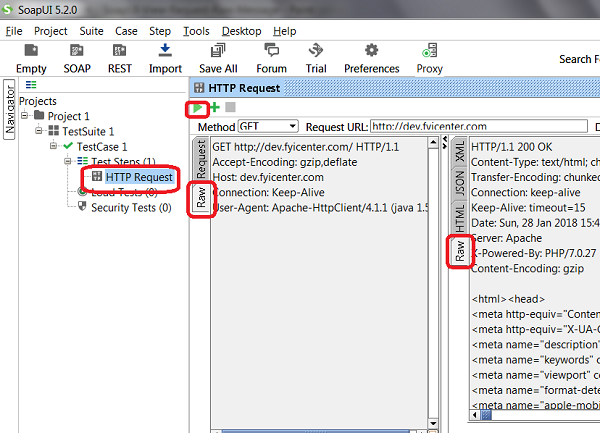
5. Click the "Raw" tab on the request panel on the left. You see the request raw message, starting with the GET request line.
6. Click the "Raw" tab on the response panel on the right. You see the response raw message, starting with the status line of "HTTP/1.1 200 OK".
The picture below shows you how to view request and response raw messages in SoapUI:
⇒ gzip Compressed HTTP Response in SoapUI
⇐ Understanding SoapUI Functionalities
2018-04-21, ≈10🔥, 0💬
Related Topics:
