Run My First SoapUI Test
How to Run my First Test with SoapUI?
✍: FYIcenter.com
 If you have created your first test in SoapUI as described
in the previous tutorial, you run it using these steps.
If you have created your first test in SoapUI as described
in the previous tutorial, you run it using these steps.
1. Start SoapUI on your computer.
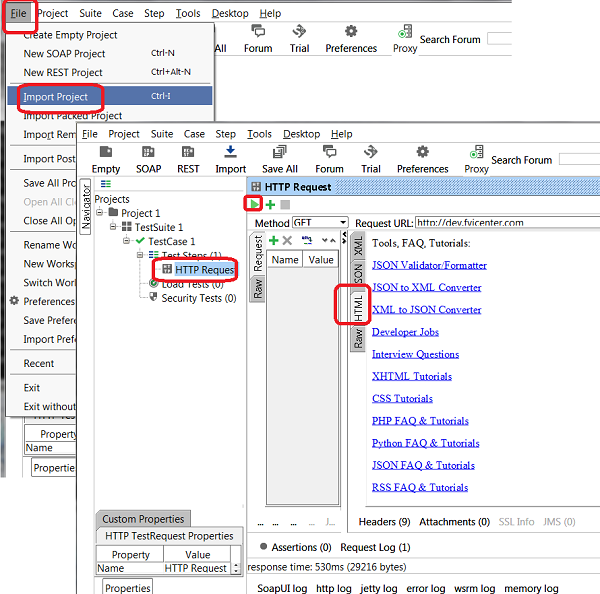
2. Click "File > Import" menu to open your first SoapUI test project stored in "\fyicenter\First-project.xml". You see the test project displayed in the project explorer panel on the left.
3. Double-click on "HTTP Request" test step under "Project 1 > TestSuite 1 > TestCast 1> Test Steps". You see the "HTTP Request" window.
4. Click the "Run" icon. You see the test step executed.
5. Click the "HTML" tab on the response panel on the right. You see the response displayed as the Web page format. But CSS format is not applied and JavaScript codes are not executed. So the page does not look what you see in a Web browser.
6. Click "File > Save All Projects" menu and save it as "\fyicenter\First-project.xml".
The picture below shows you how to run your first SoapUI test project:
2018-04-28, ∼2932🔥, 0💬
Related Topics:
