Select Page Element in Selenium IDE for Chrome
How to Select Page Element manually in Selenium IDE for Chrome?
✍: FYIcenter.com
 You use the "Record" function to select page elements to build test steps
in Selenium IDE for Chrome.
You use the "Record" function to select page elements to build test steps
in Selenium IDE for Chrome.
You can also use the "Find target in page" function to build test steps manually as shown in this tutorial.
1. Start Chrome browser and visit sqa.fyicenter.com.
2. Open Selenium IDE extension with a new project.
3. Select "click" as the Command.
4. Click "Select target in page" icon near the end of the "Target" line. You see a warning box showing up in Chrome window.
5. Click on any element on Web page. The locator of the page element will recorded back to the "Target" field. For example:
xpath=(//div[@id='item']/p/a/span)[3]
You can select any elements on the Web page, event they are not clickable.
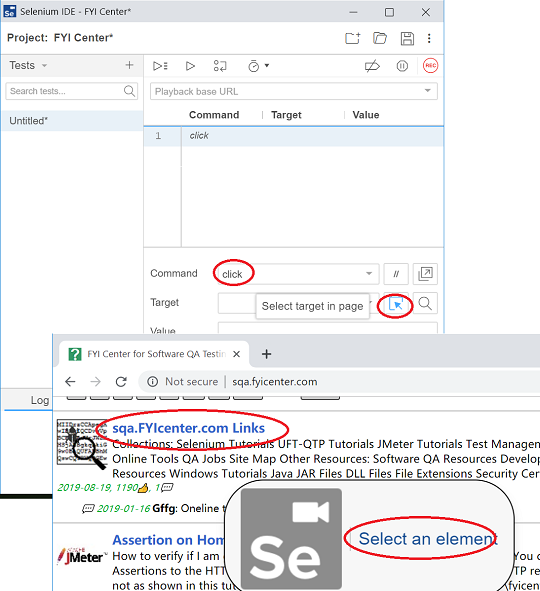
⇒ Find Target in Page in Selenium IDE for Chrome
⇐ Debug Tests in Selenium IDE for Chrome
2019-06-23, ∼3317🔥, 0💬
Related Topics:


