List Variables with Debug PostProcessor
How to list all variables with the Debug PostProcessor in JMeter?
✍: FYIcenter.com
 If you want to see a list of all your user defined variables
and their values, you can use the Debug PostProcessor as
shown in this tutorial.
If you want to see a list of all your user defined variables
and their values, you can use the Debug PostProcessor as
shown in this tutorial.
1. Open Get-Exchange-Rate-3.jmx.
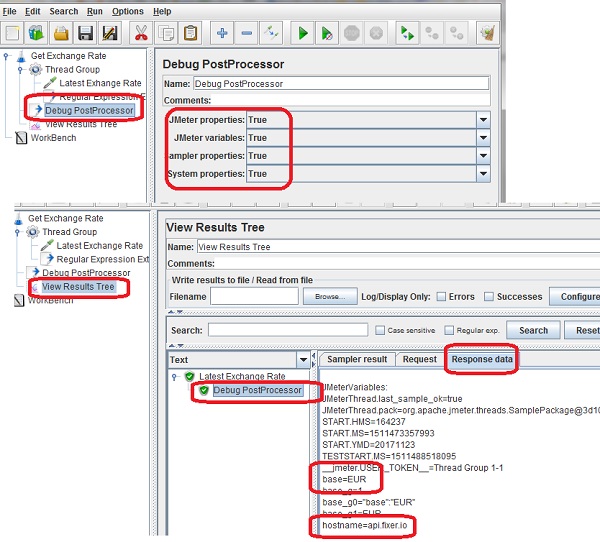
2. Add a post-processor, Debug PostProcessor, after the "Thread Group":
JMeter properties: True
JMeter variables: True
Sampler properties: True
System properties: True
The above settings list all your user defined variables and all other properties:
- JMeter properties - Properties defined and used by JMeter.
- JMeter variables - Your user defined variables.
- Sampler properties - Properties used in the sampler that just executed.
- System properties - Properties defined in the JVM that runs this JMeter instance.
3. Add the "View Result Tree" listener to see the output of the Debug PostProcessor.
4. Save the test plan as Get-Exchange-Rate-4.jmx, and run it.
5. Open the "Debug PostProcessor" under "Latest Exchange Rate" on the "View Result Tree" panel.
6. Click the "Response data" tab. You see a list of all properties and variables, including:
The picture below shows you how to list all variables and properties with the Debug PostProcessor:
⇐ Define Variable as Part of BeanShell
2017-11-10, ∼8435🔥, 0💬
Related Topics:
