Set Firefox for JMeter Proxy Server
How to set up Firefox to use the JMeter Proxy Server?
✍: FYIcenter.com
 If you have the JMeter proxy server running
on your local computer and listening at port 8888,
you can follow this tutorial to
set up Firefox to use it to record all HTTP requests and responses.
If you have the JMeter proxy server running
on your local computer and listening at port 8888,
you can follow this tutorial to
set up Firefox to use it to record all HTTP requests and responses.
1. Run Firefox and click "Options" in the menu.
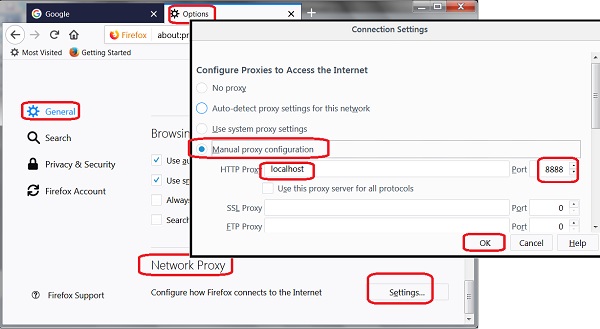
2. Click "General" and scroll down to the bottom of the settings. You see the "Network Proxy" section.
3. Click "Settings..." in the "Network Proxy" section. You see the "Connection Settings" screen.
4. Change "Configure Proxies to Access the Internet" to "Manual proxy configuration", set enter:
HTTP Proxy: localhost
Port: 8888
5. Click OK to save the changes.
Firefox is connected the JMeter proxy server now. You can start to visit your Web application. JMeter will record all HTTP requests and response to build a test plan for you.
The picture below shows you how to set up Firefox for JMeter HTTP proxy server:
⇒ Record Web Session with JMeter
2018-07-18, ∼5341🔥, 0💬
Related Topics:

